Getting Started with Kindo
Kindo is becoming our preferred method of payment from February 2026, making school payments simpler and easier to manage online.
With the online Kindo school shop, you can view and make payments from anywhere, anytime (24/7). You can select Attendance Dues, Special Character Donations, camps and school items, as well as PTA lunches and items, and place them into your cart as a one-stop shop.
You can use Kindo on your phone, tablet, or computer. Download the app for your device: Apple App Store or Google Play.
In the app, you can choose your preferred way to sign in by going to Account, selecting Log In Options, and choosing the method that suits you.
New user? Create an account at shop.kindo.co.nz/app/login.
Existing user? Log in to your myKindo account and update your details (and your students’ details) under My Details.
Using Kindo
If you currently have an automatic payment set up to our school bank account, please update this to use Kindo instead.
Log in at shop.kindo.co.nz/app/login and go to myKindo Wallet. Under Online Bank Transfer you’ll find the details needed to set up an Automatic Payment with your bank.
Important: you must include your unique reference number so funds can be allocated correctly. While funds may leave your account instantly, please allow up to 2 working days for them to reach the school.
There are a range of ways to top up your myKindo account. You can top up at checkout, or at any time by selecting myKindo Wallet.
Once you’ve created your myKindo account, any school credits you may have will be transferred to your myKindo wallet for you to use.
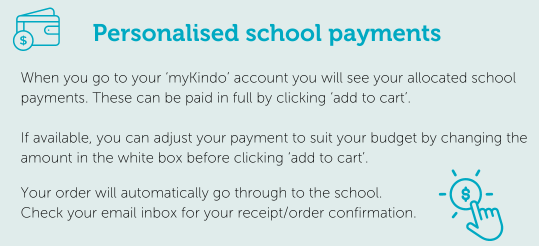
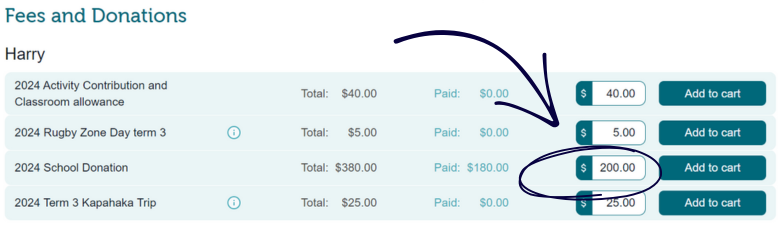
In your myKindo account, you’ll see allocated school payments. These can be paid in full by clicking Add to Cart. If available, you can adjust the amount to suit your budget before adding to cart.
You can also make part payments on personalised items (for example, camp or school trips) by typing the amount you’d like to pay into the white box, then adding it to your cart. This is a great way to spread payments.
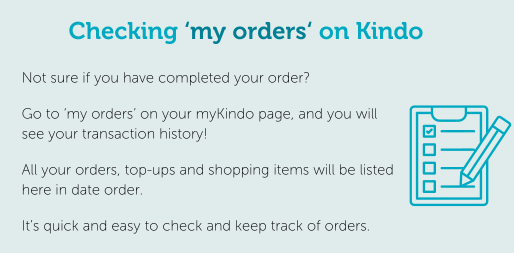
Not sure whether you completed an order? Go to the My Orders tab in your myKindo page to view your transaction history. All orders, top-ups, and items are listed in date order.
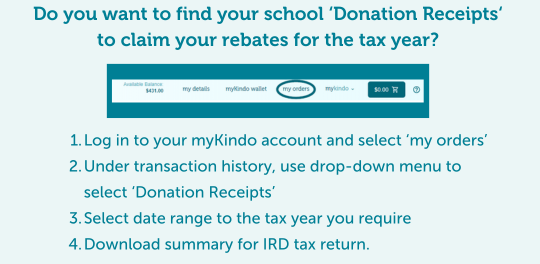
If you’re wanting to claim back your 33% donation receipt, you can download your donation receipts from your Kindo account to attach to your IRD tax return.
How to shop and pay
-
01
Choose your items
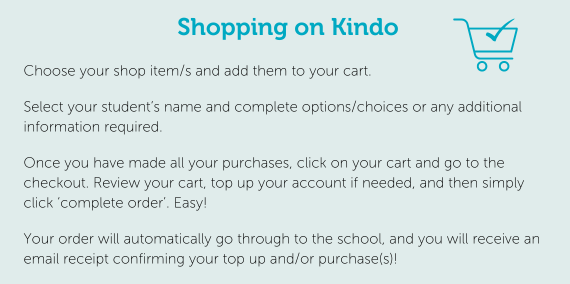
Choose the item(s) you want and add them to your cart.
-
02
Select your student
Select your student's name and complete any required options or additional information.
-
03
Go to checkout
Open your cart and go to checkout.
-
04
Complete your order
Review your cart, top up if needed, then click Complete Order.